Discover — How To?
SPAD.neXt VoiceAttack plugin
VoiceAttack ≥ 1.5.12.24 required!
- Quit VoiceAttack.
- In
<VoiceAttackInstallDir>\Appscreate a directory "SPAD.neXt". -
Copy
C:\Program Files\SPAD.neXt\GamePlugins\Voiceattack\snVoiceAttack_plugin.dllto that directory.
For the plugin to work, you'll need to enable Apps in VoiceAttack.
VoiceAttack and SPAD.neXt need to run on the same computer.
General
The plugin uses the variable snSTATUS
("OK" or "ERROR") to signal whether the call was successful. If
snSTATUS is "ERROR", the
variable snMESSAGE will
contain the error message.
Always check the "Wait for plugin function to finish" checkbox.
Using the boolean variable snDEBUG
you can toggle debug output of the plugin on and off.
Functions
Available "context" values for VoiceAttack:
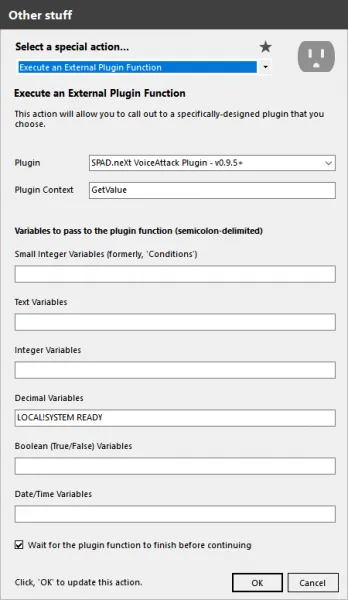
GetValue
Retrieve a variable value from SPAD.neXt.
Input: decimal VariableName
to contain the full variable name from SPAD.neXt (e.g.
LOCAL!SYSTEM READY).
Important: all ":" (colon) need to be replaced by "!" (exclamation mark) due to a limitation of VoiceAttack.
Output: the variable named like the value you queried (e.g.
LOCAL!SYSTEM READY) will
contain the variable value.
SetValue
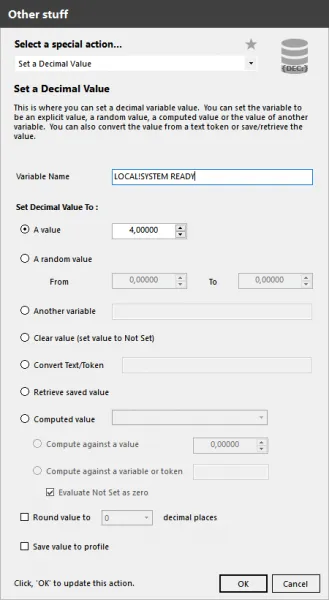
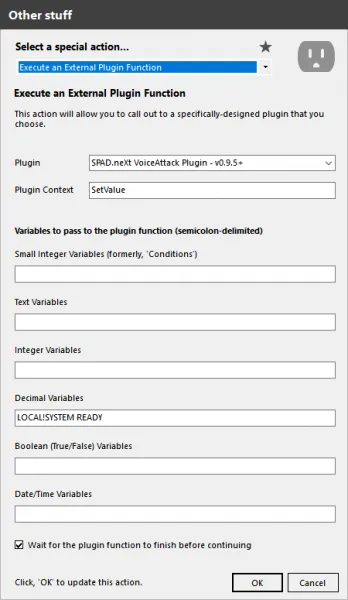
Set a variable value within SPAD.neXt.
Input: decimal variableName
(e.g. LOCAL!SYSTEM READY)
needs to contain the new value. Again, replace ":" with "!".
EmulateEvent
Execute an event within SPAD.neXt.
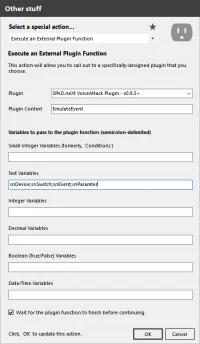
The following text variables need to be filled and passed to the call:
snDevice— the target device (e.g. '06A3:0D06:0' for the first Multi Panel in the system).snSwitch— the switch to execute the event on (e.g. 'MULTIPANEL_BUTTON_AP' for the autopilot button).snEvent— the event to execute (e.g. 'VALUEON' to emulate a short press).snParameter— the parameter needed by the event, if any.
To see the devices/switches/events available on your system, in SPAD.neXt navigate to Settings → Application → Expert and press the button next to the "Remote Service" setting — it generates a PDF document for your system.
Source Code
For reference, the plugin's source code is available on GitHub.